DIY Website setup

Local business DIY website
Simple steps any local business owner can follow;
If you’re running a business today, having a website isn’t just “nice to have” — it’s essential. The good news? You can set one up yourself without spending a fortune or becoming a tech expert. I’ll walk you through it, step-by-step, using WordPress and the Astra theme — one of the easiest, fastest ways to get online.
How to Set Up Your Own WordPress Website with the Astra Theme
Step 1: Register Your Domain & Hosting with Hostinger
-
Go to hostinger.com. (crazydomains/ freeparking.co.nz can also be used.)
-
Choose a hosting plan — for most small businesses, Premium Web Hosting is a good balance of cost and features.
-
During checkout, you’ll be able to search for and register your domain name (included free in many plans).
-
Complete the purchase and log into your Hostinger account.
Step 2: Install WordPress from Hostinger Dashboard
-
In Hostinger’s control panel (hPanel), find the Website section.
-
Click Auto Installer → choose WordPress.
-
Fill in your site title, email address, and admin password.
-
Select your domain from the dropdown and click Install.
You now have WordPress set up at yourdomain.com and can log in at yourdomain.com/wp-admin.
Step 3: Install the Astra Theme
-
In the WordPress dashboard, go to Appearance → Themes → Add New.
-
Search for “Astra” in the top right search bar.
-
Click Install, then Activate.
Step 4: Install Astra’s Starter Templates Plugin
-
In the WordPress dashboard, go to Plugins → Add New.
-
Search for “Starter Templates – Elementor, Gutenberg & Beaver Builder Templates” (by Brainstorm Force).
-
Install and activate it.
Step 5: Choose and Import a Template
-
Go to Appearance → Starter Templates.
-
Choose your preferred page builder (Elementor is beginner-friendly).
-
Browse designs by business type — cafés, tradies, retail, beauty, etc.
-
Click on a design to preview it, then click Import Complete Site.
Step 6: Customise Your Website
-
Go to Appearance → Customise.
-
Upload your logo, set your brand colours and fonts, and adjust layouts.
-
Update the text and images to reflect your business.
Step 7: Add Your Key Pages
-
Home — quick intro to what you do and how to get in touch
-
About Us — tell your story
-
Services/Products — explain your offerings clearly
-
Contact — phone, email, address, and a form (WPForms plugin works well)
Step 8: Test on Mobile
Use the Customiser’s mobile view to make sure everything looks good on smaller screens.
Step 9: Launch and Promote
Check links, fill out your contact form to test it, then share your website on Facebook, Instagram, and your Google Business Profile.
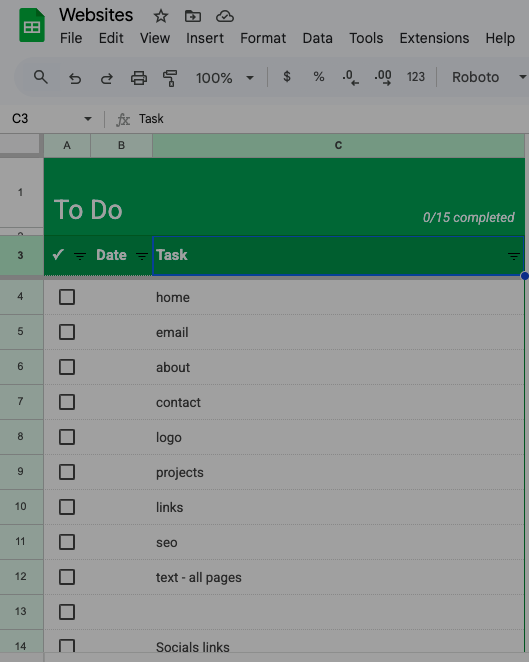
Checklist download
Download this spreadsheet checklist with each step
Also its a good idea to save all your passwords here too
How-to step by step Video guide
Follow these steps to setup a website
Social etc setup
Follow these steps for socials etc
**Video coming soon if people require it
About this page
This page is being tested to see if there is any interest in something like this being setup and whether or not the content is useful. The video content is not detailed, but please get in touch if you have any questions or require assistance.
More detail will be added to the page if there is engagement with it and it is useful. Thanks – the team at Central/ Southern web.